

Source monitoring#
SFTPPlus monitors the source location for changes and transfers files once they are stable. You can configure how often it checks for changes, how long files must remain unchanged, and whether files are transferred individually or in batches.
For the configuration options, see the transfers configuration reference.
Source Location#
Source location changes are detected by regularly checking the source folder for changes.
When a change is observed in the monitored source location, the monitor emits one of the following event types:
File modified
File/folder created
File/folder deleted
File/folder moved
Here is a list of file system changes that are ignored:
Folder modified (since they are emitted whenever a member is created / removed / moved inside that folder)
Permissions / Security / Attribute changes
For transfers of type Local filesystem only, created, moved, or removed folders will only emit an informational log event, without triggering the prior transfer command. The same behaviour is present when a file is removed.
For transfers of type other than Local filesystem only, folder events and file removed events are ignored, and no informational event is emitted.
Source events are observed only inside the configured path, and the server will ignore events outside the configured path. While in most cases this is the desired result, it affects 'moved' events. Moved events are only observed inside the location path. When you move a file from a path outside the monitored path, a create event is emitted. When you move a file to a path outside the monitored path, a delete event is emitted.
A non-recursive transfer monitors only files directly inside the source folder. A recursive transfer also monitors files in all of its subfolders.
When the source location is not available (for example, its connection failed after all retries) the transfer will become stalled and no files will be transferred.
Source File Transfer#
Once changes are observed in the source, SFTPPlus will start doing the actual transfer of the file's content.
Multiple files might be created at the source at the same time. All of them are observed as soon as they are stable.
To limit the load to the remote destination, SFTPPlus will only transfer one file at a time. Multiple files are not transferred in parallel at the same time.
All the files detected in the source folder of a transfer are placed into a queue. As soon as the current file is transferred, a new file is picked from the queue.
To thwart erroneous behaviour, SFTPPlus will only keep files in the queue up to 100 000 files. If more files are created and not transferred, the transfer will fail and stop.
Recursive Source Transfer#
A recursive transfer is one in which you configure the base path for a transfer and SFTPPlus will traverse the whole path and sub-path and transfer files from there.
You can configure a transfer to check the source path for any file which is found in the source path itself or in any of the sub-paths.
The source path can be on a local filesystem or remote location such as an SFTP or FTPS server.
See below for an example:
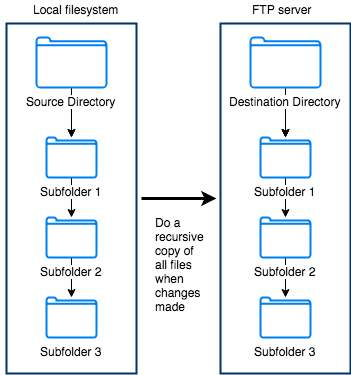
The files will be transferred to the destination using a folder structure relative to the source path. On destination, the parent folder of each file is automatically created. The full source path hierarchy is not preserved.
For a recursive source transfer, there is a performance issue to consider. For each sub-folder, SFTPPlus will need to make a separate request (local or remote) to get the content and attributes of each member of that folder. When you have 1000 sub-folders, SFTPPlus will make at least 1000 requests.
In contrast, if you set up a non-recursive file transfer scenario, the files will be transferred only from a single folder and will make a single request.
See below for a simplified example:
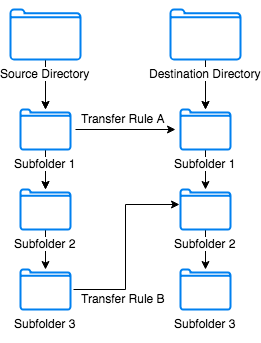
In the above scenario, only two sub-folders have transfer rules associated with them. This means that SFTPPlus will only monitor filesystem changes within those two sub-folders, and not within the main home folder. Transfers are triggered based on the rules relevant to the two folders. Other benefits to this method beyond performance include: greater control for the administrator for their managed file transfer setup, more detailed logging of events associated with the transfer and monitored folders, and better troubleshooting capacity if the issues are traced back to the transfer rules themselves.
In addition, specific transfer rules can be configured based on custom conditions to trigger the transfer. The conditions could depend on factors such as the schedule, the file type (if not all files), the directory itself, directory actions that trigger the transfer rule and more.
Working with the source monitor#
Understanding the changes poll interval#
When the changes_poll_interval passes, the application will read all files, folders, and attributes (size, last modification time, etc) found in the monitored folder. Each snapshot is then compared with the previous.
If there are changes between the snapshots, they are notified to the application.
Before doing the actual notification, the application will wait for changes to be considered stable as defined by another option, stable_interval.
Note
Lower values help detect changes quicker, but increase the load, CPU, and network usage for local and remote servers.
The poll interval might drift.
For example, with a value of 7200 and a transfer started at 15:35, the product might be busy at 15:35. In this case, the check is done only at 15:36 and the next check will be scheduled for 17:36.
Changing the file stable period settings#
When a new file is created or a file starts to be modified, it is not processed by SFTPPlus right away. This allows an external program to finish handling the file.
If no other changes to the file are observed after this interval, it is then processed.
Criteria for a file to be considered stable:
Size is not changed.
Last modified time attribute is not changed.
The configured stable interval has elapsed.
After the last modification is observed, this interval is then allowed to pass.
Each change will reset the stable interval for the file itself since each file has its own stable counter.
Since changes can only be observed with a resolution defined by changes_poll_interval, the stable_interval needs to be a multiple.
The following will check new files every hour and transfer stable files after two hours, even if the stable_interval is lower:
[transfers/b904e6a6-c29b-4ccf-8abd-edcae4d3324f]
changes_poll_interval = 3600
stable_interval = 60
File age discovery#
The file age is determined based on the file's modified attribute.
Some file copy tools provided by the operating system or 3rd party might preserve the file attribute during the copy operation. In this case, even if you make a new copy of a file, it will be observed as an old file by the SFTPPlus system.
Windows Explorer or command prompt tools will preserve the original modified date of the copied file.
Linux and macOS tools will update the modified date of the copied files. The modified date is preserved only when the copy operation is done in archive mode.
Batch transfer operation#
The default transfer operation for SFTPPlus is to transfer a file as soon as it is detected and considered stable. Each file will be processed as an independent transfer. The pre/post command hooks and events are executed as a separate process for each file.
File name or path-based batch#
You can configure SFTPPlus to wait and batch/group the files based on a file with a specific path or name. This is done by using the batch_marker_path configuration option. You can configure an exact file path, a pattern matching a path, or a list of exact file paths or path matching expressions.
The transfer will start only after the source contains all the files matching configured batch_marker_path. The transfer can wait for one file or a fixed number of multiple files.
There is a 15 seconds delay before it begins transferring all the previous files. Should there be new files created within the 15 seconds interval after the marker, these files will be included in the batch transfer.
When filtering source files that are to be transferred, the filtering rules should also include the file marker. That is, when the source_filter option is used, the batch marker file should be included in both source_filter and batch_marker_path expressions.
Note
The matching expression is for the full file path and not only for the file name. If you want to match a file name complete.txt located in any directory you should configure it as *complete.txt.
The marker file or files are also transferred.
For more details about defining a file marker, see the matching expression documentation.
The following example will filter the source for both .pdf and .desc files. The transfer will start 15 seconds after a report.desc file is generated in any of the subdirectories for c:jobsreports. For example, in c:jobsreportsACC-2018-09-23report.desc or c:jobsreportsACC-2018-09-24report.desc
[transfers/a4747959-25de-470a-b76e-afe08071a70d]
enabled: yes
name: Move report set.
description: Move all report files once the report is finalized.
   A report.desc file is generated by the external reporting process
   to signal that the process is complete.

recursive: Yes
source_uuid: c4b74ed0-b952-4edc-be24-7d8e1e6d8068
source_path: c:\jobs\reports
source_filter: m/*.(pdf|desc)/
delete_source_on_success: Yes

destination_uuid: 92eb50d4-bfc2-4b15-a369-f0d74dc68dac
destination_path: /dropbox/

batch_interval: 0
batch_marker_path: *done.desc
With the configuration from above, assume that you have the following files:
c:\jobs\reports\ACC-123\in.pdf
c:\jobs\reports\ACC-123\out.pdf
c:\jobs\reports\ACC-123\response\report.pdf
c:\jobs\reports\MON-542\office.pdf
c:\jobs\reports\MON-542\storage.pdf
c:\jobs\reports\MON-542\response\report.pdf
c:\jobs\reports\MON-542\done.desc
then the following actions are taken on these files:
c:\jobs\reports\ACC-123\in.pdf               - Not transferred
c:\jobs\reports\ACC-123\out.pdf              - Not transferred
c:\jobs\reports\ACC-123\response\report.pdf  - Not transferred
c:\jobs\reports\MON-542\office.pdf           - Transferred
c:\jobs\reports\MON-542\storage.pdf          - Transferred
c:\jobs\reports\MON-542\response\report.pdf  - Transferred
c:\jobs\reports\MON-542\done.desc            - Transferred
The batch marker should match a single file for a certain directory and its descendants. The following file structure is valid and the files will be transferred since the marker files are in different folders which are not a descendant of another:
c:\jobs\reports\ACC-123\in.pdf
c:\jobs\reports\ACC-123\out.pdf
c:\jobs\reports\ACC-123\done.desc            - Marker file
c:\jobs\reports\MON-542\storage.pdf
c:\jobs\reports\MON-542\done.desc            - Marker file
The following file structure will fail since MON-542responsereport.pdf is triggered by both MON-542responsedone.desc and MON-542done.desc
c:\jobs\reports\MON-542\done.desc        - Marker file
c:\jobs\reports\MON-542\storage.pdf      - Triggered by MON-542\done.desc
c:\jobs\reports\MON-542\resp\done.desc   - Marker file
c:\jobs\reports\MON-542\resp\report.pdf  - Triggered by MON-542\done.desc
                                           and MON-542\resp\done.desc
Multiple batch markers#
A transfer can be configured to delay starting the batch files only after a specific set of files are present in the source directory.
The following example will filter the source for both .pdf and .desc files. The transfer will start after a report.desc file is generated in any of the subdirectories for c:jobsreports. The start is delayed by stable_interval plus 3 seconds after no other file is added to the batch. Files added after the marker will still be included in the same batch and will delay the start of the batch.
For example, in c:jobsreportsACC-2018-09-23report.desc or c:jobsreportsACC-2018-09-24report.desc
[transfers/a4747959-25de-470a-b76e-afe08071a70d]
enabled: yes
name: Move report set.
recursive: No
source_uuid: c4b74ed0-b952-4edc-be24-7d8e1e6d8068
source_path: c:\jobs\reports
source_filter: *.pdf | *.marker
delete_source_on_success: Yes
destination_uuid: 92eb50d4-bfc2-4b15-a369-f0d74dc68dac
destination_path: /dropbox/

batch_interval: 0
batch_marker_path:
  *expenses.done
  *orders.done
Having the above configuration, assuming the following files are present in the source, the transfer will not start just yet, since the orders.done marker file is not yet detected:
c:\jobs\reports\June-expenses.pdf
c:\jobs\reports\June-expenses.done
c:\jobs\reports\June-orders.pdf
The transfer will start as soon as the c:\jobs\reports\June-orders.done file is detected and all the files are transferred together:
c:\jobs\reports\June-expenses.pdf
c:\jobs\reports\June-expenses.done
c:\jobs\reports\June-orders.pdf
c:\jobs\reports\June-orders.done
Time-based batch transfers#
By using the batch_interval configuration option, you can instruct SFTPPlus to only start transferring files once no new files are detected in the specified time interval.
All the files detected during this interval will be transferred together as a single transfer. The pre/post command hooks and events are executed once for the batch of files.
Batch transfer and scheduling#
When a transfer is stopped and there are files queued for a batch transfer, SFTPPlus will not transfer the files but will instead emit a warning to inform the user of this action.
When a transfer is suspended, and there are files in a batch that are not yet triggered, the files are not transferred and no warning info is emitted. The files will be transferred once the transfer is resumed and the batch is triggered by one of the batch triggering conditions.
When a batch transfer is in progress and the transfer is suspended, the active batch will continue to be transferred.