

Transfers scheduling#
Introduction#
This page describes how to implement transfers that are active based on a schedule.
Check the separate reference documentation for transfers, which describes all the configuration options available when defining a transfer.
There is a separate documentation page dedicated to transfer configuration, which describes other functionalities available when implementing transfers.
A transfer can be configured to be active all the time or be active based on a simple scheduler.
The scheduler available in SFTPPlus allows you to define transfer start and transfer stop events in a 24-hour interval, weekly interval or monthly interval.
The current scheduler does not know whether the current day is a working day or a national holiday.
It only knows about the current time of the day and the current day of the week or month.
Note
There is no support for daylight saving time changes or time zone changes.
The duration until the next scheduled action is always computed using the current time zone.
If you change the time zone of your operating system, you will need to restart SFTPPlus.
To create a scheduled transfer, you will have to define the start and stop actions at different hours across a day or week.
There are 3 types of schedulers available for transfers:
daily - start or stop every single day.
weekly - start or stop based on the day of the week.
monthly - start or stop based on the day of the month.
You can't define a scheduler using a mix of weekly and monthly based actions.
Get in touch if you want a transfer with more complex scheduling rules.
Configuring schedules in the Web Manager#
To configure the schedule for a transfer, open its configuration and find Schedule under Advanced. Select Start or Stop, choose a day, enter a time, and select Add. This adds a schedule event. Pair each Start event with a Stop event to define an active period. Enter times in 24-hour format, using the server's local time zone. Once the events are defined, review and apply the configuration changes to save the schedule.
Note
Day choices that are incompatible with existing actions are unavailable. Daily and weekly actions can be combined, but neither can be combined with monthly actions. The last and second last days of the month cannot be combined with numbered days 26 through 31. Numbered days absent from a month are skipped.
To change an action, remove it and add its replacement. Remove all actions to make the transfer active at all times.
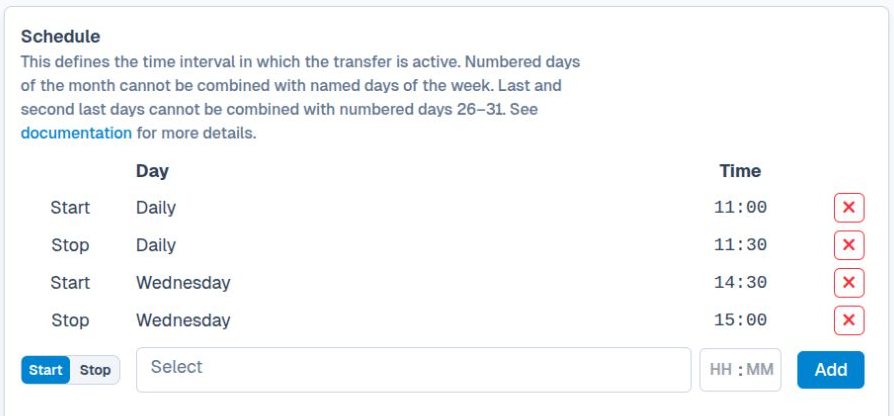
A transfer schedule in the Web Manager.#
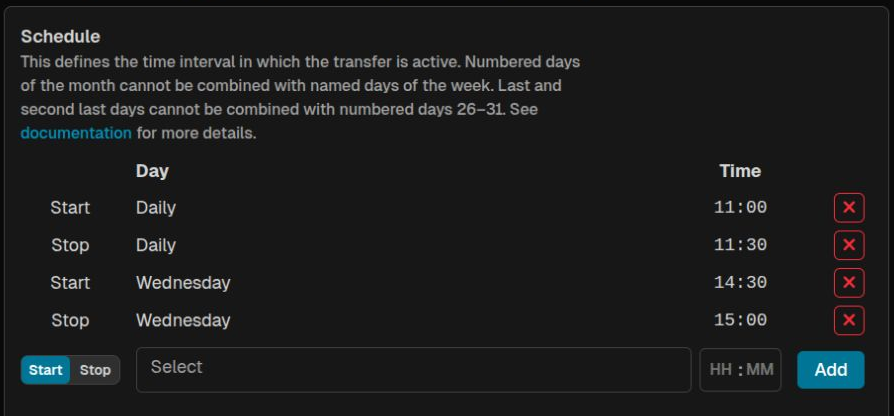
A transfer schedule in the Web Manager.#
Daily#
The daily scheduler allows to define start or stop actions that will be triggered every single day.
For example, to have the transfer start at 10:00, and stop at 14:00 each day, you can use this configuration:
[transfers/6b775eec-f98b-4527-811f-fd8c5c71a028]
schedule = 10:00-start, 14:00-stop
You can define multiple start and stop events within the day. To have the transfer start daily at 10:00, stop at 14:00, restart at 17:00, and stop at 18:00, use:
[transfers/6b775eec-f98b-4527-811f-fd8c5c71a028]
schedule = 10:00-start, 14:00-stop, 17:00-start, 18:00-stop
You can also have the scheduler extended over two consecutive days. To have the transfer start daily at 23:00 and stop the next day at 01:00, use:
[transfers/6b775eec-f98b-4527-811f-fd8c5c71a028]
schedule = 23:00-start, 01:00-stop
Weekly#
The weekly scheduler, allows defining actions for different days within the week.
For defining actions on different days throughout the week, add the name of the day before the time value.
An action that starts and stops each day, can be configured as:
[transfers/6b775eec-f98b-4527-811f-fd8c5c71a028]
schedule = Monday-10:00-start, Monday-14:00-stop
           Tuesday-10:00-start, Tuesday-14:00-stop
           Wednesday-10:00-start, Wednesday-14:00-stop
           Thursday-10:00-start, Thursday-14:00-stop
           Friday-10:00-start, Friday-14:00-stop
           Saturday-10:00-start, Saturday-14:00-stop
           Sunday-10:00-start, Sunday-14:00-stop
To have a transfer start at 10:00 and stop at 14:00 every Monday, Wednesday, and Friday, use:
[transfers/6b775eec-f98b-4527-811f-fd8c5c71a028]
schedule = Monday-10:00-start, Monday-14:00-stop
           Wednesday-10:00-start, Wednesday-14:00-stop
           Friday-10:00-start, Friday-14:00-stop
You can also have start and stop events spanning different days. To have a transfer that is active from Monday to Wednesday and then again active from Friday to Saturday, use:
[transfers/6b775eec-f98b-4527-811f-fd8c5c71a028]
schedule = Monday-10:00-start, Wednesday-18:00-stop
           Friday-10:00-start, Saturday-18:00-stop
As with the daily scheduler you can define multiple actions within the same day. Below is the configuration for a transfer that will start twice each Monday and will be active for 4 hours each time:
[transfers/6b775eec-f98b-4527-811f-fd8c5c71a028]
schedule = Monday-10:00-start, Monday-14:00-stop
           Monday-18:00-start, Monday-22:00-stop
Monthly#
The monthly scheduler allows defining actions for different days within the month.
For defining actions on different days throughout the month, add the number of the day before the time value.
For example, to have an action that is active on the 1st and 15th day of each month use:
[transfers/6b775eec-f98b-4527-811f-fd8c5c71a028]
schedule = month_day_1-10:00-start, month_day_1-14:00-stop
           month_day_15-10:00-start, month_day_15-14:00-stop
You can define multiple actions within the same day. Below is the configuration for a transfer that will start twice each 25th day of the month and will be active for 4 hours each time:
[transfers/6b775eec-f98b-4527-811f-fd8c5c71a028]
schedule = month_day_25-10:00-start, month_day_25-14:00-stop
           month_day_25-18:00-start, month_day_25-22:00-stop
You can schedule actions on any numbered day from month_day_1 through month_day_31.
If a month does not have the configured day, the actions configured for that day are skipped. For example, month_day_31 does not run in April, June, September, November, or February. In a common year, month_day_29 and month_day_30 also do not run in February.
Last or second last day of the month#
To schedule an event for the last day of the month, use the explicit configuration:
[transfers/6b775eec-f98b-4527-811f-fd8c5c71a028]
schedule = month_day_last-10:00-start, month_day_last-14:00-stop
To use the last two days of every month, regardless of its length, use month_day_second_last and month_day_last:
[transfers/6b775eec-f98b-4527-811f-fd8c5c71a028]
schedule = month_day_second_last-10:00-start, month_day_last-14:00-stop
For example, these actions run on February 27 and 28 in a common year, and on February 28 and 29 in a leap year.
Warning
Do not combine either relative month-end day with numbered days 26 through 31 in the same schedule. Those days can overlap, so such a schedule is rejected during validation.
Clock drift correction#
The transfer's changes_poll_interval is not aligned with the schedule. We are currently working on improving this to align the interval with the schedule.
For example, the configuration below will schedule to check files every 2 hours (or 7200 seconds) between 8AM and 6PM:
[transfers/6b775eec-f98b-4527-811f-fd8c5c71a028]
schedule = 08:00-start, 18:00-stop
changes_poll_interval = 7200
If the transfer was started at 13:35, it will do a check at 13:35
instead of what you might expect to be done at 14:00
The next check will be scheduled for 15:35.