

Accounts authentication#
Introduction#
SFTPPlus provides multiple ways in which an account or administrator can be authenticated.
The server-side security of SFTPPlus is designed based on the Authentication, Authorization and Accounting (AAA) components.
This page will focus on the Authentication component. For the Authorization part, check the authorization documentation while for the Accounting, check the accounting documentation.
Here are a few methods / sources used to authenticate accounts. For a full list please check the authentication methods configuration:
Application Account (SFTPPlus accounts persisted in a configuration file)
Operating System Local Account
Windows Domain Accounts
Legacy SFTPPlus WebAdmin accounts
HTTP resource
These accounts can be authenticated by various types of credentials. Below is a list of supported credentials:
Username and password provided by the operating system
Username and password via a domain controller
Username and password provided in a configuration file
Username and SSH RSA/DSA keys
Username and SSL certificates.
Note
SSH RSA/DSA keys credentials are only available when used with SFTP.
SSL certificate credentials are only available when used with FTPS.
On the Windows operating system, SSH RSA/DSA key and SSL certificates credentials are only available for application accounts, i.e. Windows local or domain accounts can be authenticated only based on username and password credentials.
While supporting multiple authentication methods and hence multiple account identity providers, there is the risk of overlapping account names / IDs, the same account being provided by multiple sources.
The server will check each authentication method in the configured order and will stop checking other providers at the first source accepting or rejecting the credentials. If the source cannot give an accept / reject answer, since the account name / ID is unknown, the server will ask the next identity source provider.
The authentication process will check to see if there is a valid request for a new file transfer session. If the check confirms the provided credentials, it will return the configuration for the requested account.
Multi-factor authentication#
A single authentication method defined in SFTPPlus, depending on its type, can support multi-factor authentication, without the need for any other secondary authentication method.
For example, the embedded SFTPPlus authentication method supports authenticating users with both username, password, one time token or ssh keys. All this, without relying on any other external authentication method. This is done using the required_credentials configuration option.
A RADIUS authentication method can validate a username and password and then trigger a mobile phone push notification or ask for a one time token delivered via SMS or a software or hardware token.
Web-based authentication methods like Entra ID, Google Identity or Okta are designed from the ground-up with multi-factor authentication and single sign-on user experience.
If your preferred authentication method is not yet available in SFTPPlus. get in touch with our support team and we will be happy to extend the functionalities of SFTPPlus to also support your authentication method.
Second factor authentication#
Some authentication methods, like Operating System accounts or LDAP accounts, only support single factor authentication based on username and password.
To implement multi-factor authentication you will need to combine it with another authentication method.
For example the LDAP Active Directory authentication will validate the username and password and when combined with RADIUS or an HTTP based authentication to validate a one time token or code.
Note that depending on your RADIUS server authentication, the RADIUS server itself can act as a standalone multi-factor authentication or only act as a second factor authentication.
When an authentication method is used in SFTPPlus as the second factor, it will automatically use the same username as the initial authentication factor. The second factor is designed to only ask the user for a second code.
Note
The second factor authentication method will only be used for authentication purposes. It only supports username and password credentials. Authentication implies validating the credentials. The authorization of the account will be based on the result from the first factor method. Authorization implies the permissions and virtual folders associated with the account, which are based on the groups of the account and their configuration.
For example when the Active Directory user john-d is authenticated using the SFTPPlus Active Directory LDAP authentication method with RADIUS as second factor you will have the following configuration:
[server]
; AD is the only entry-point for authentication
authentication = 0aef69b4-3af1

[authentications/0aef69b4-3af1]
type = ldap
name = Internal AD
username_attribute = userPrincipalName
username_suffix = @ad.example.com
second_factor_authentication = 4af88c0c-11f1

[authentications/4af88c0c-11f1]
type = radius
name = RSA SecurID
use_as_second_factor = yes
In this example when user john-d requests to access the files the following authentication process is executed:
SFTPPlus Internal AD authentication method will expand the username to
john-d@ad.example.comSFTPPlus will ask the user for a password and request an authentication for this username and password credentials, against the Active Directory, using
john-d@ad.example.comas the username.Once the Active Directory has accepted the Credentials, it will use the RSA Authentication Manager RADIUS server as a second factor.
SFTPPlus will ask the user for the second factor as an additional password, and the user will enter the value of the RSA one time token.
SFTPPlus will then make a request to the RADIUS server with
john-d@ad.example.comas username and the newly provided value as password.Once the RADIUS server accepts the request, the user is authenticated with Operating System as the authentication type.
The actual SFTPPlus configuration varies depending on the authentication types. Get in touch with our support team to find out more about how you can configure SFTPPlus to implement multi-factor authentication.
Note
An authentication method that is configured to be used as a second factor authentication cannot be used as a standalone authentication method and can not be configured with another second factor authentication method of its own.
Second factor and required credentials#
SFTPPlus can be configured to combine the second factor authentication with the required_credentials configuration option.
For example, this allows using SSH key-based authentication as the first factor and RADIUS, RSA SecurID, Cisco Duo, or other authentication as the second factor.
When required_credentials = password, ssh-key is configured, an SFTP client can send the initial SSH key-based authentication request. Once the SSH key is accepted, SFTPPlus will ask for the credentials from the second factor.
Note
If the account also has a password, when the SSH key is accepted, SFTPPlus will not ask for the password since the password is considered a first factor authentication, and the first factor authentication is already satisfied by the SSH key.
If the SFTP client will first send the password, SFTPPlus will validate the password as the first factor and then ask for the second factor credentials. Since the account is configured to also require SSH key-based authentication, once the second factor is validated, SFTPPlus will ask for the SSH key credentials in order to satisfy the configured required credentials.
Windows Domain Accounts on servers running Active Directory#
How does SFTPPlus authenticate Windows Domain accounts?
SFTPPlus uses the Windows API to authenticate Windows Domain accounts via a Domain Controller, the server running the Active Directory service.
This option only works on Windows machines which is part of the domain as a "member server".
In terms of SFTPPlus configuration, the software does not interact directly with Active Directory nor the LDAP server in creating an account.
SFTPPlus only uses the existing Windows authentication capabilities of existing accounts.
Authenticating with Windows Domain Accounts#
There are 3 main configuration cases:
Domain account configured via default group
Domain accounts configured via augmented SFTPPlus config
Domain account configured via augmented SFTPPlus config with inherited values from group
This guide focuses on the first two cases.
As for the final case, as this is not a common case, please email Pro:Atria should you require support.
While this guide is written for those new to SFTPPlus in mind, administrators can also edit these configurations through the text file equivalent residing in the server.ini configuration file.
Augmenting domain accounts with SFTPPlus account configuration#
The following will help guide you in setting up a new SFTPPlus os account that is an existing Windows Domain account.
This setup adds an authentication layer on top of the OS account and thus allowing account access and ability to conduct file transfers using SFTPPlus.
These steps assume that the OS account/s and settings already exists.
In Web Manager, create a new Account with the type Operating System (os).
If the new SFTPPlus os account is a Windows Domain Controller Account, the
username is provided in the UPN format (like username@domain.com).
This format is needed if there is an Active Directory forest.
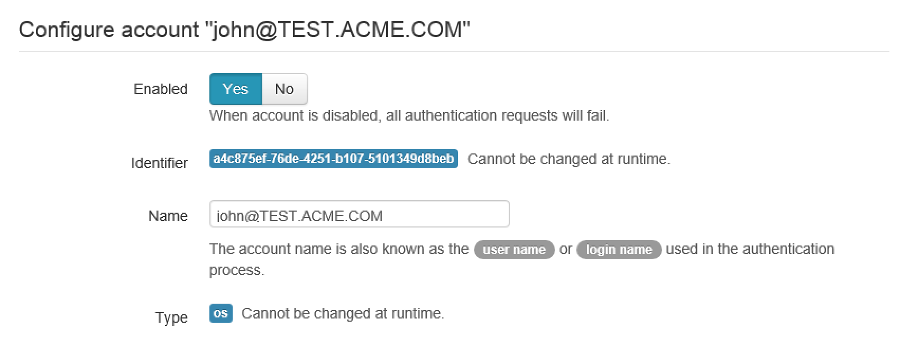
You can allow the account to create a new folder in the account using the
home folder's path (c:\\ftp-files) and make sure to lock access.
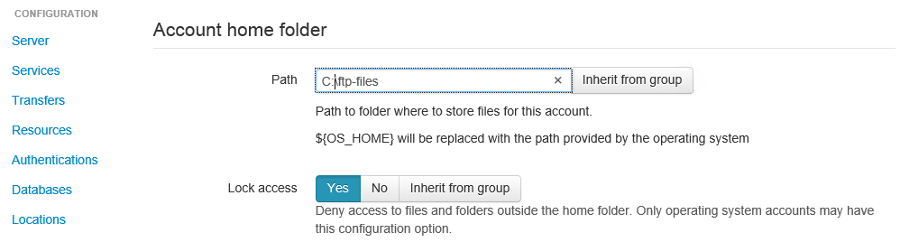
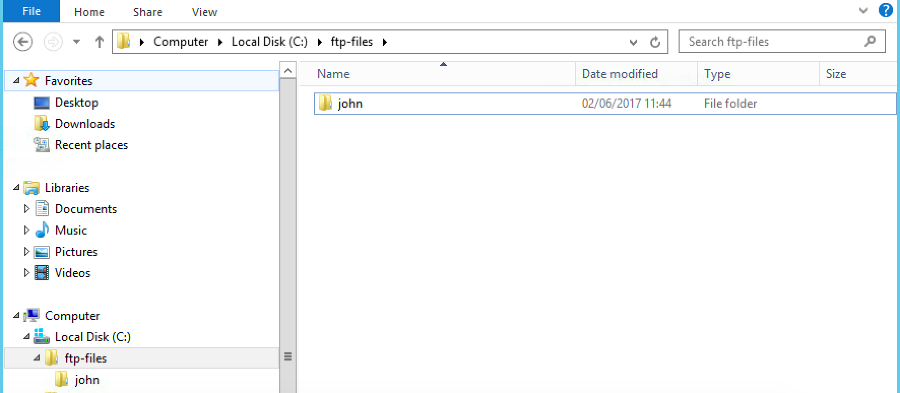
When SFTPPlus first authenticates the account username@domain.com,
it will create a folder for the username as the home
folder path.
In the screenshot below, we can see that for john@test.acme.com, SFTPPlus
will create a folder in the home folder path.
The final path for this account is now c:\\ftp-files\\john.
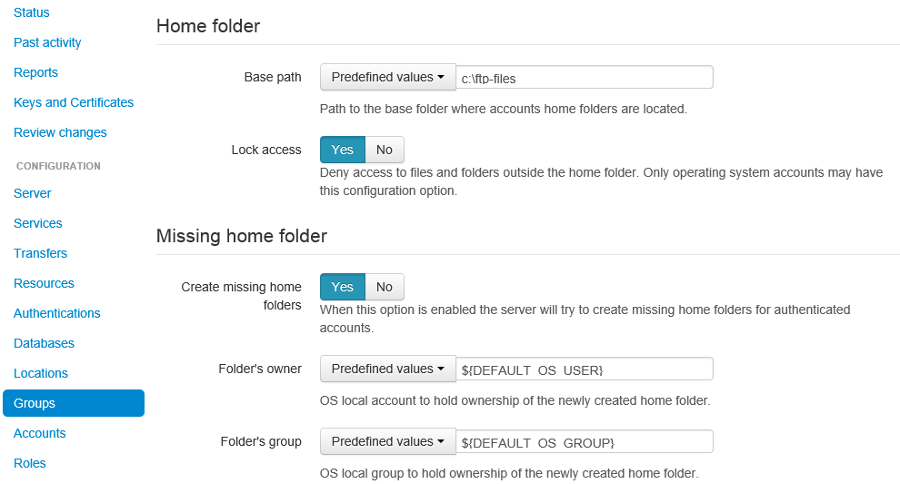
Authenticating without any account configuration via DEFAULT_GROUP#
For those setting up multiple accounts, they have the additional option of using the groups configuration.
In this way, groups is used to configure the 'Missing home folder' section.
In the screenshot below, the missing home folder is configured so that the OS account is the owner of this folder.
The account is then associated with this group in the Accounts section for that particular account.
One item to note is that if the user configuration is missing and then this DEFAULT_GROUP is used.
Troubleshooting Windows Domain authentication#
Should there be issues in authenticating, make sure to check the server logs or the activity reports available in the Web Manager GUI.
For example, if the device has connectivity issues with the domain controller (if the account is a domain controller account), there may be problems authenticating the surrounding services that use it, such as SFTPPlus. The issue may be transient, or if it's ongoing please check with the administrator of the domain controller.
Another common error is to list the account's UUID as part of the authentication method for the service that the account will be using to transfer files (such as ftp). This method should only be used for authentication UUID, not the account UUID.
If you are intending to use another type of authentication, such as an LDAP bind, make sure that this authentication method UUID is added to the service.
Source IP address-based access#
Use source_ip_filter to restrict authentication by source address and to control which groups or roles are associated with a login. See Source IP filtering for rule syntax, defaults, Web Manager instructions, and examples for accounts, groups, administrators, roles, security policies, and cluster pools. Country and ASN rules use the GeoIP database.
Auto-disabling inactive accounts#
An account can be configured to become disabled if no successful authentication was done in the last N days.
Note
For this functionality to work the Analytics engine resource needs to be running.
This is done using the disable_on_inactivity configuration option.
The same configuration option is also available for group. It will disable the accounts which are configured with the group as the primary group.
When an account is auto-disabled the event with ID 20195 is emitted to help audit the configuration change.
When the account was never successfully authenticated, the account creation date is considered as the last activity for that account.
If there is no record of a successful login and the account has no created configuration value, the account is not auto-disabled. Its creation time will be set to the current time so that eventually it can be auto-disabled if not active. An error event with ID 20196 is emitted.
Allowing users to change their password#
You can configure whether to allow file transfer users to change their own password, or whether to have their password updated only by administrators.
Only application accounts defined inside SFTPPlus Web Manager can have their password changed.
Operating system accounts, domain accounts, LDAP accounts, and other accounts defined in external systems can't have their password changed via SFTPPlus.
When an account is allowed to change its password, it can do this using the password update command available for each transfer protocol.
FTP/FTPS, SFTP/SCP, and HTTP/HTTPS protocols, each have a different method to change the current user's password. You can find more details about changing the password as part of the operational documentation for each protocol / file transfer service type.
For example, in the following configuration we have user johnd, which can change its own password, and user billing-sap, which can't change its own password:
[groups/2fd149b3-9fdb-49d0-8666-3c28f151f64d]
name = partners
enabled = Yes
allow_own_password_change = Yes

[groups/87dc321-87dc-aedf-1123-cd5328aef4]
name = automation
enabled = Yes
allow_own_password_change = No

[accounts/92ad5b32-d8d7-4ed8-94e1-dbb9f01383f4]
name = johnd
enabled = yes
type = application
group = 2fd149b3-9fdb-49d0-8666-3c28f151f64d
description = Account used by John Doe from ACME Inc to push reports.

[accounts/5432ca3-bbd5-9432-be31-b4318ddea4]
name = billing-sap
enabled = yes
type = application
group = 87dc321-87dc-aedf-1123-cd5328aef4
description = Account used by billing automation system to pull reports.
Disabling all users from a group#
The Enabled configuration option for a group, affects the state of all users from that group.
For example, the following configuration will disable access to any account
from the partners group, while the accounts from the accounting group
will have access granted based on the account's configuration:
[groups/0a3f3aa7-50d2-44ef-9456-4f0beb69cf7d]
name = accounting
enabled = Yes

[groups/804aab78-70c0-4e1d-8480-4979e169a0a2]
name = partners
enabled = No
While a group is enabled, specific accounts can be disabled by setting the
enabled property for the specific account.