

Schedule automated file transfers
Schedule SFTPPlus MFT transfers for specific hours, weekdays, or days of the month, so partner exchanges run only when needed.

- Updated
- 2025-04-15
Run transfers only when they are needed
An automated file transfer does not always need to run around the clock. Your partner might accept files only during working hours, publish a report on a particular weekday, or expect a monthly delivery on a fixed date.
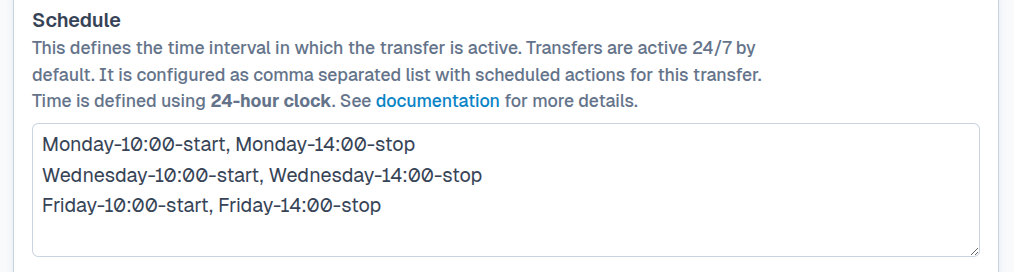
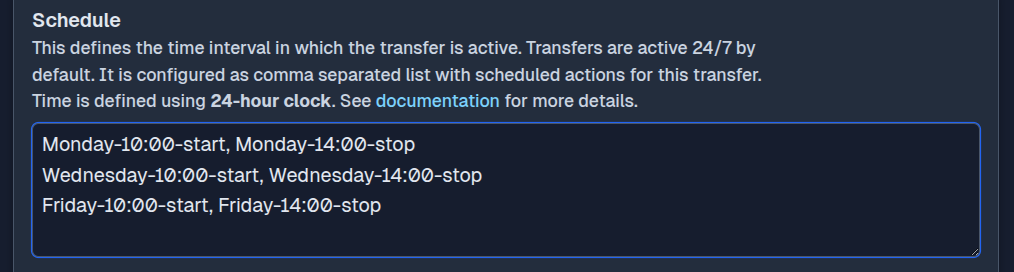
SFTPPlus MFT lets you start and stop a transfer according to a daily, weekly, or monthly schedule. The transfer checks its source and exchanges files only while its scheduled window is active. Monthly scheduling is available in SFTPPlus MFT version 5.12.0 or newer.
Send daily files during a partner's working hours
Suppose your organization generates files for a partner's SAP ERP system every weekday. The partner accepts deliveries only from 9:00 AM to 5:00 PM.
You can configure a weekly schedule that starts the transfer at 9:00 AM and stops it at 5:00 PM from Monday through Friday. Files generated outside that window remain at the source until the next scheduled active period. This respects the partner's receiving hours without requiring an external scheduling service.
Collect a weekly report without polling every day
A partner publishes a report every Monday at 10:00 AM, but the exact delivery time can vary. Configure the transfer to run on Mondays from 10:00 AM to 1:00 PM.
SFTPPlus checks for the report during that window and can process a late arrival without connecting to the partner on every other day of the week.
Publish a monthly sales report to SharePoint
Your sales teams prepare reports in several source folders, and the consolidated report is published on the first day of each month. A monthly schedule can activate the transfer on that day, collect the available files, and publish them to SharePoint Online.
The transfer remains stopped for the rest of the month, when there is no report to process. You can also schedule a transfer for the last calendar day of each month, regardless of whether the month has 28, 30, or 31 days.
Choose the schedule that matches the exchange
SFTPPlus MFT supports three scheduling intervals:
- A daily schedule defines one or more active windows that repeat every day.
- A weekly schedule defines start and stop times for selected weekdays.
- A monthly schedule defines active windows for selected days of the month or for the last day of the month.
Limiting a transfer to the required window avoids unnecessary connections and source folder checks. It also makes activity easier to align with partner availability and operational service levels.
See the transfer scheduling documentation for configuration examples and the available scheduling rules.
Get help with a scheduled transfer
If you need help designing a schedule around a partner's availability or a reporting workflow, contact the SFTPPlus MFT support team.