

RSA SecurID authentication for file transfers
Connect SFTPPlus MFT to RSA Authentication Manager over RADIUS to add RSA SecurID tokens to domain logins or let RSA validate both factors.
- Updated
- 2026-09-14
SFTPPlus MFT integrates with the RSA SecurID product family through RADIUS. In particular, it can use RSA Authentication Manager to validate a code from a user's software or hardware token before granting access to file transfers. Users can keep their existing domain accounts and RSA tokens.
The integration supports two arrangements. SFTPPlus MFT can check the domain password and then ask RSA to validate the second factor. Alternatively, when RSA Authentication Manager supports and is configured for password authentication, SFTPPlus MFT can delegate both checks to RSA.
Add RSA tokens to Active Directory logins
Consider an organization whose file transfer users already have accounts in an on-premises Active Directory domain. Their existing domain login checks a username and password, but does not request a second factor. The organization also uses RSA Authentication Manager to validate codes from software or hardware tokens. In this setup, RSA validates only the token credential and does not check the user's password against the domain.
SFTPPlus MFT coordinates the two checks:
- The user supplies their domain username and password to SFTPPlus MFT.
- SFTPPlus MFT validates those credentials against the domain through Windows authentication or its Active Directory integration.
- After the password is accepted, SFTPPlus MFT requests the RSA SecurID code.
- SFTPPlus MFT sends the same username and the token credential to RSA Authentication Manager through RADIUS.
- SFTPPlus MFT grants access only after both the domain and RSA have accepted the login.
For example, an employee signs in to an SFTP service with their usual domain password, then enters the current code from their RSA token. A valid domain password alone is not enough to open the file transfer session. The token response must also be accepted for that user. If the RSA policy requires a PIN with the token code, the user provides the RSA passcode required by that policy. An RSA PIN is separate from the domain password.
The same arrangement can add RSA tokens to an LDAP directory or another primary authentication method supported by SFTPPlus MFT. For SFTP access, an SSH public key can also serve as the primary credential before SFTPPlus MFT requests the RSA second factor.
Let RSA Authentication Manager validate both factors
Newer RSA Authentication Manager versions can validate the username and password as well as the additional factor. RSA introduced password authentication for RADIUS clients in Authentication Manager 8.8. When this capability is configured for the SFTPPlus RADIUS client, RSA can handle the complete authentication process.
SFTPPlus MFT first sends the user's username and password to RSA over RADIUS. After validating the password, RSA returns an Access-Challenge response to request the additional credential. SFTPPlus MFT supports these RADIUS challenge messages and prompts the user for their second factor code. It sends the response back to RSA and grants access only when RSA returns the final Access-Accept response. An Access-Challenge means that authentication is still in progress, so it does not grant access by itself.
For this arrangement, configure RADIUS as the primary authentication method in SFTPPlus MFT. RSA handles the password and token checks, so a separate SFTPPlus second factor method is not needed for that login. RSA's RADIUS client configuration guide describes the Password Authentication setting and the subsequent authentication prompts. Choose the arrangement according to the capabilities and configuration of your RSA deployment.
Configure domain passwords with RSA tokens
The following walkthrough configures SFTPPlus MFT to check a Windows domain password first and then validate an RSA token. It requires SFTPPlus MFT 5.24.0 or newer. This integration has been tested with RSA Authentication Manager 8.7 and 8.9.
Before starting, install and configure both products, link Active Directory to RSA Authentication Manager, and assign a token to a domain user for testing. Check that the username supplied to RSA identifies the same person as the domain account. For example, if domain users sign in as alex@example.com, RSA must recognize that identity and its assigned token.
RADIUS integration is available on all platforms supported by SFTPPlus MFT, including Windows, Linux, macOS, and container deployments. The Operating System Accounts method used below authenticates Windows domain users when the SFTPPlus server belongs to that domain. For a server outside the domain, use the Active Directory integration to check the password, then select the same RADIUS second factor. The server addresses, authentication method names, and groups shown in the screenshots are examples to replace with your own values.
1. Register SFTPPlus MFT in RSA Authentication Manager
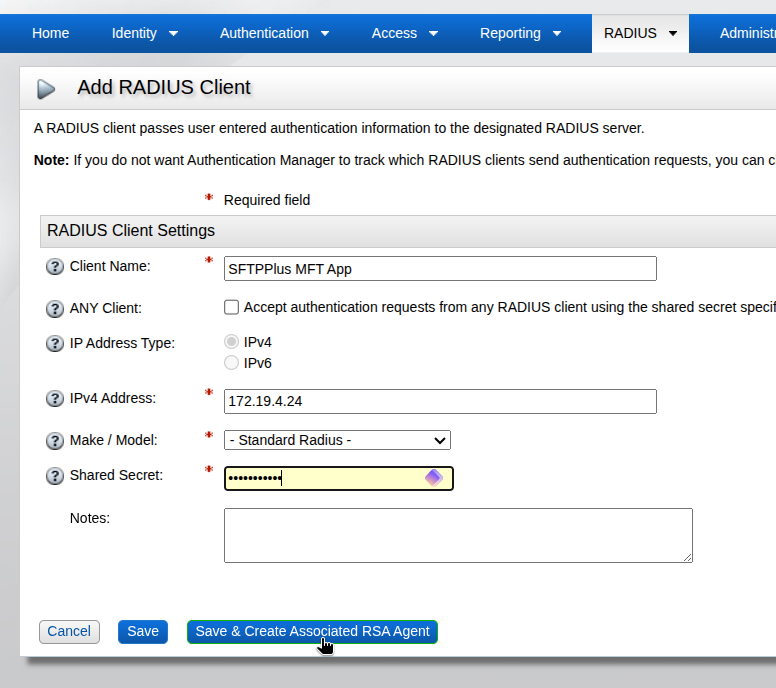
In the RSA Security Console, open RADIUS, then RADIUS Clients, and select Add New. Enter a client name such as SFTPPlus MFT App and the IP address that the SFTPPlus server uses for outgoing connections to RSA. This must match the source address that RSA receives, including any address translation between the servers. Leave Make / Model at the default Standard Radius profile and enter a shared secret. Keep that secret private and use the same value in the SFTPPlus RADIUS configuration.
Select Save & Create Associated RSA Agent to create an agent dedicated to the SFTPPlus application. If the SFTPPlus server can connect from more than one address, configure the additional addresses under Alternate IP Addresses in the associated RSA agent.
2. Configure the RSA second factor in SFTPPlus
In SFTPPlus Web Manager, create a RADIUS authentication method. Give it a name that identifies your RSA deployment, then enter the RSA server address, RADIUS port, and shared secret. The example uses port 1812 and MS-CHAP-V2; the authentication type must match the one configured on your RSA server. Keep the RADIUS connection on a protected internal network.
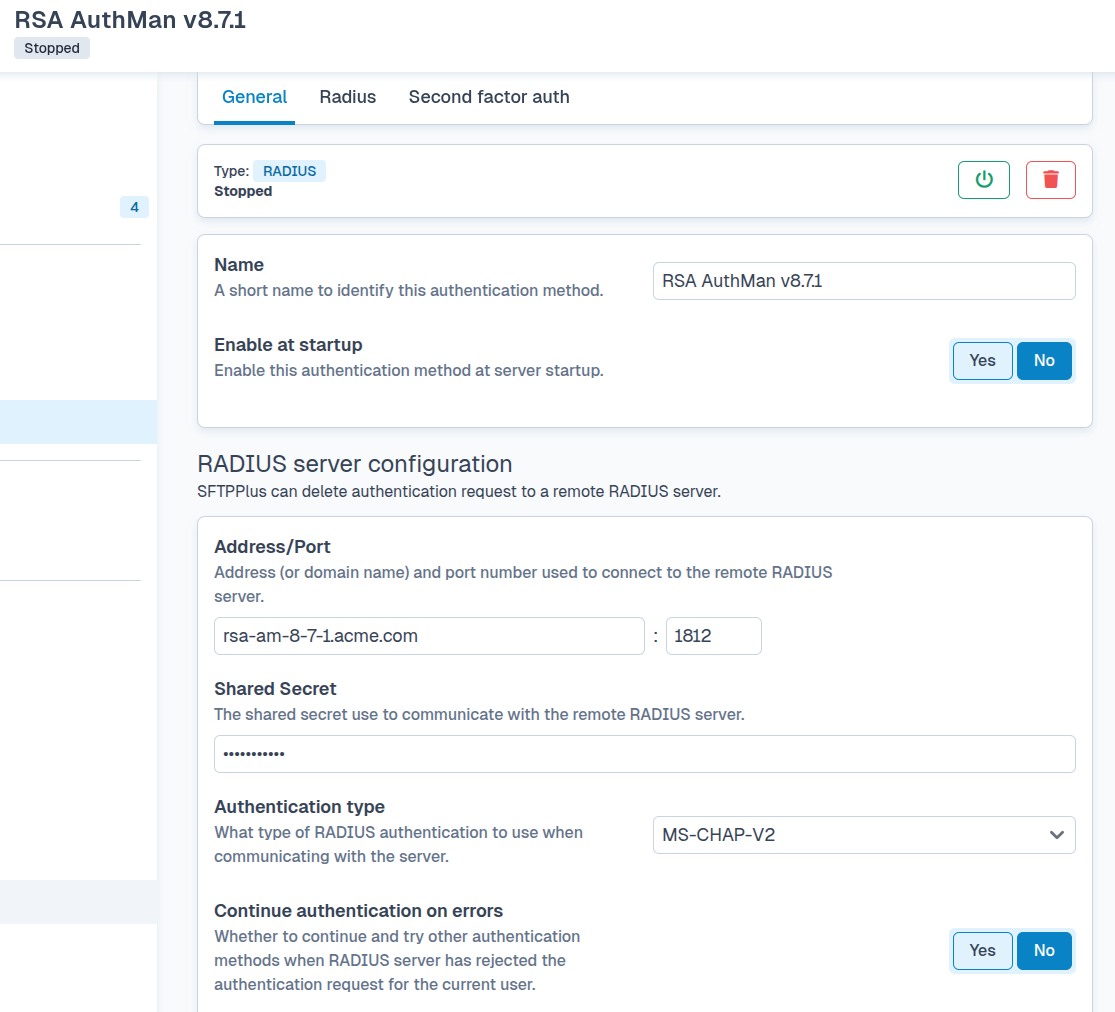
In the RADIUS method's second factor settings, set Use as second factor to Yes. This makes the method available to validate the additional credential after another method accepts the user's primary credential. Select Review and apply to save the configuration. The connection screenshot shows a method that is still stopped: enable it at startup and start it before testing a login.
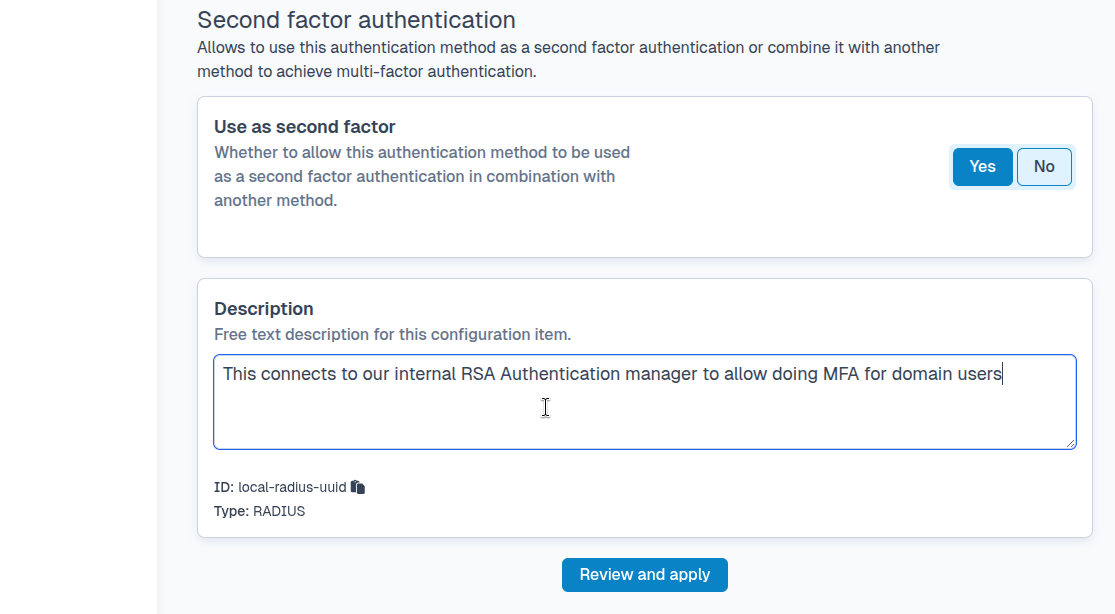
The SFTPPlus RADIUS documentation describes the connection settings and second factor options.
3. Link domain authentication to the RSA method
Create an Operating System Accounts authentication method for the Windows domain users. Set Allowed groups for file transfer to the domain groups whose members should be allowed to use the service. The example uses as-file-transfer-users and ftp-legacy-app. Use the groups from your own domain to restrict access to the intended users.
The screenshot also enables Access filesystem as service user. With this setting, the domain account is used to check the credentials, while the SFTPPlus service account performs file operations. See Operating System users for the choice between using the service account and impersonating the authenticated user.
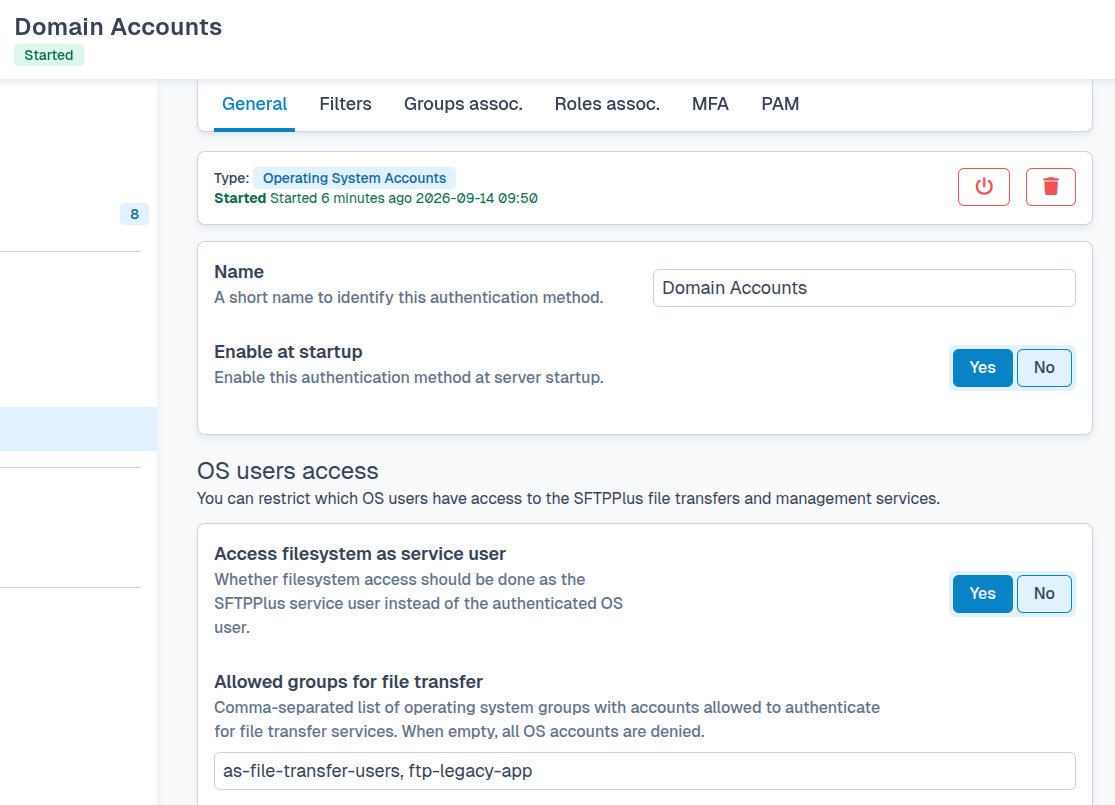
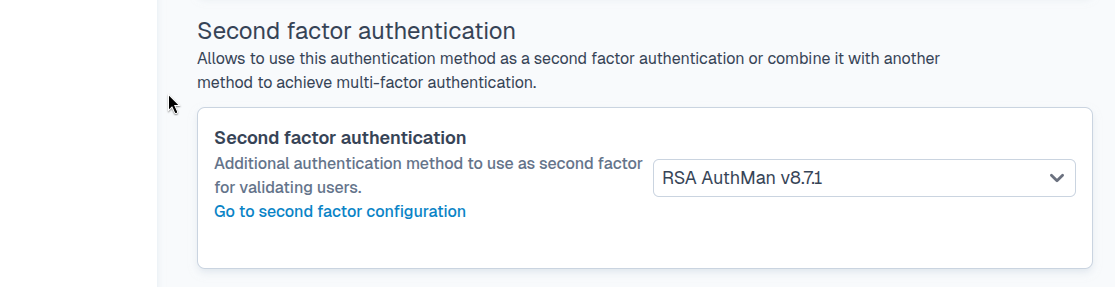
In this domain authentication method, set Second factor authentication to the RADIUS method created in the previous step. The example selects RSA AuthMan v8.7.1. Apply the configuration and make sure the domain authentication method is running and enabled at startup. A successful domain password check will now require the RSA second factor before SFTPPlus grants access.
You can create multiple SFTPPlus groups and assign different file transfer permissions to each group. Domain group membership determines which users can authenticate; SFTPPlus permissions determine which files and folders they can access.
4. Test an SFTP login
Connect with a domain user that belongs to an allowed group and has an assigned RSA token. Use an SFTP client with SSH keyboard-interactive authentication so that it can display both prompts. For example, a command-line session might look like this:
$ sftp -P 10022 win-ad-user@sftpplus.example.com
Welcome to Example Company SFTP Service
RSA SecurID MFA required
(win-ad-user@sftpplus.example.com) Domain password>
More credentials required
First factor accepted. Second factor required.
(win-ad-user@sftpplus.example.com) RSA AuthMan v8.7.1:
Replace the username, server name, and port with those for your service. Enter the domain password at the first prompt and the RSA token credential at the second. The welcome message and prompt labels depend on your configuration, and entered credentials are not displayed. Check that valid credentials allow access to the intended folders and that an incorrect password or token prevents the login.
FTP, FTPS, and some older SFTP clients have only a username and password exchange, so they cannot display the same sequence of interactive prompts. Our MFA overview explains the available login methods, including native TOTP support for clients with a single password field.
RSA Cloud Authentication Service
SFTPPlus MFT can also integrate with RSA Cloud Authentication Service through RADIUS as part of an RSA ID Plus deployment. Supported methods include approval notifications, Authenticate OTP, device biometrics, SMS OTP, voice OTP, RSA SecurID OTP, and emergency access codes. The methods offered to a user depend on the RSA policy and the authenticators registered for that user. The Authentication Manager setup above covers the domain password and RSA token arrangement; a cloud deployment needs its own RADIUS client and authentication policy configuration.
RSA terminology varies between product versions. Newer documentation may call a token an OTP credential, a hardware token a hardware authenticator, and a tokencode an OTP or access code. The Authenticate App is now called the Authenticator App.
In either RSA arrangement, SFTPPlus MFT continues to apply the user's file and folder permissions after authentication and record session activity in its audit trail. To plan an integration with your domain, RSA deployment, and file transfer clients, contact the SFTPPlus support team.