

Use Entra ID tenant restrictions through a corporate proxy
Configure SFTPPlus MFT to trust your corporate proxy's certificates when using Microsoft Entra ID with tenant restrictions v2.
'%20d='M0%200h1200v600H0z'/%3e%3cg%20transform='translate(96%2060)%20scale(.84)'%3e%3cg%20fill='none'%20stroke='%23769bcd'%20stroke-opacity='.09'%3e%3cpath%20d='m-100%20370%20600-300%20800%20400M-100%20450%20600%20100l800%20400M-100%20530%20600%20180l800%20400M-100%20610%20600%20260l800%20400'/%3e%3cpath%20d='m100%20600%20900-450M260%20600l820-410M420%20600l820-410M580%20600l820-410'/%3e%3c/g%3e%3cpath%20d='m360%20398%20245-122%20234%20117-245%20122z'%20fill='%23050e23'%20opacity='.65'/%3e%3cg%20fill='none'%20stroke-linecap='round'%20stroke-linejoin='round'%3e%3cpath%20d='m145%20425%20420-210m-320%20285%20320-160'%20stroke='%237790b5'%20stroke-width='4'%20stroke-dasharray='9%2014'%20opacity='.5'/%3e%3cpath%20d='m166%20330%20200%20100%20560-280'%20stroke='%2375dcd4'%20stroke-opacity='.1'%20stroke-width='30'/%3e%3cpath%20d='m166%20330%20200%20100%20560-280'%20stroke='url(%23path)'%20stroke-width='7'/%3e%3c/g%3e%3cg%20stroke-linejoin='round'%3e%3cpath%20d='m510%20174%2070-35%20150%2075-70%2035z'%20fill='%23689bd0'%20stroke='%2398cef3'%20stroke-width='2'/%3e%3cpath%20d='M660%20249v230l70-35V214z'%20fill='%2322436b'%20stroke='%235895c2'%20stroke-width='2'/%3e%3cpath%20d='M510%20174v230l150%2075V249z'%20fill='url(%23gateway)'%20stroke='%2398cef3'%20stroke-width='2'/%3e%3cpath%20d='m533%20212%20104%2052v165l-104-52z'%20fill='%23142c4b'%20stroke='%2383b5df'%20stroke-width='2'/%3e%3cpath%20d='m552%20243%2044%2022%2022%2033v58l-66-33z'%20fill='%23c1e0f3'/%3e%3cpath%20d='m596%20265%200%2022%2022%2011'%20fill='%23659bc4'/%3e%3cpath%20d='m565%20290%2026%2013m-26%200%2017%209'%20stroke='%23426a92'%20stroke-width='4'/%3e%3cellipse%20cx='592'%20cy='342'%20rx='17'%20ry='21'%20transform='rotate(-26%20592%20342)'%20fill='%2379e0c8'/%3e%3cpath%20d='m584%20341%206%209%2012-13'%20fill='none'%20stroke='%2312374b'%20stroke-width='4'%20stroke-linecap='round'/%3e%3cpath%20d='m554%20370%2063%2031'%20stroke='%237be5cc'%20stroke-width='4'/%3e%3c/g%3e%3cg%20fill='%23a6bad7'%20stroke='%23152540'%20stroke-width='4'%3e%3ccircle%20cx='484'%20cy='256'%20r='11'/%3e%3ccircle%20cx='484'%20cy='380'%20r='11'/%3e%3c/g%3e%3cg%20transform='translate(855%2082)'%3e%3cpath%20d='M-32%20109c-36%200-48-45-22-65%2010-8%2022-10%2033-6C-17-6%2039-21%2066%2013c26-13%2059%206%2059%2036%2043-1%2049%2060%208%2060z'%20fill='%23284f75'%20stroke='%239edbf1'%20stroke-width='3'/%3e%3cpath%20d='m19%2055%2026%2013%2026-13v27L45%2095%2019%2082z'%20fill='%238ee8d3'/%3e%3cpath%20d='m19%2055%2026-13%2026%2013-26%2013z'%20fill='%23c4f7e9'/%3e%3cpath%20d='M45%2068v27'%20stroke='%23396c80'%20stroke-width='2'/%3e%3c/g%3e%3cg%20transform='translate(166%20303)'%20fill='%23223c63'%20stroke='%2390b7e7'%20stroke-width='2'%20stroke-linejoin='round'%3e%3cpath%20d='m-38-19%2038-19%2038%2019v48L0%2048l-38-19z'/%3e%3cpath%20d='M-38-19%200%200l38-19M0%200v48'%20fill='none'/%3e%3cpath%20d='m-27-2%2016%208m-16%207%2016%208'%20stroke='%238de7d3'%20stroke-width='4'/%3e%3c/g%3e%3c/g%3e%3c/svg%3e)
- Published
- 2026-10-09
SFTPPlus MFT can integrate with Microsoft Entra ID in networks that use a corporate proxy to apply tenant restrictions v2. These restrictions control access to external applications when people use accounts from other organizations on your network.
The proxy adds a policy header to Microsoft sign-in requests, and Entra ID enforces the policy. To insert that header, the proxy decrypts the HTTPS connection and presents a certificate issued by your organization's certificate authority (CA). SFTPPlus MFT needs to trust that CA to connect through the proxy.
Prepare the proxy
Ask your identity and network administrators to configure the policy and proxy using Microsoft's tenant restrictions v2 guide. The proxy inserts sec-Restrict-Tenant-Access-Policy with your tenant ID and policy ID for the Microsoft sign-in domains listed in that guide.
Proxy header insertion protects sign-ins; it does not block anonymous access to resources. Make sure the intended browser and server traffic passes through the configured proxy. Configuring a proxy in SFTPPlus MFT alone does not configure users' browsers.
Trust the proxy certificates in SFTPPlus MFT
Obtain the proxy's root and intermediate or issuing CA certificates from your network administrator. Create a separate trusted-certificates item in the SFTPPlus MFT vault containing those certificates.
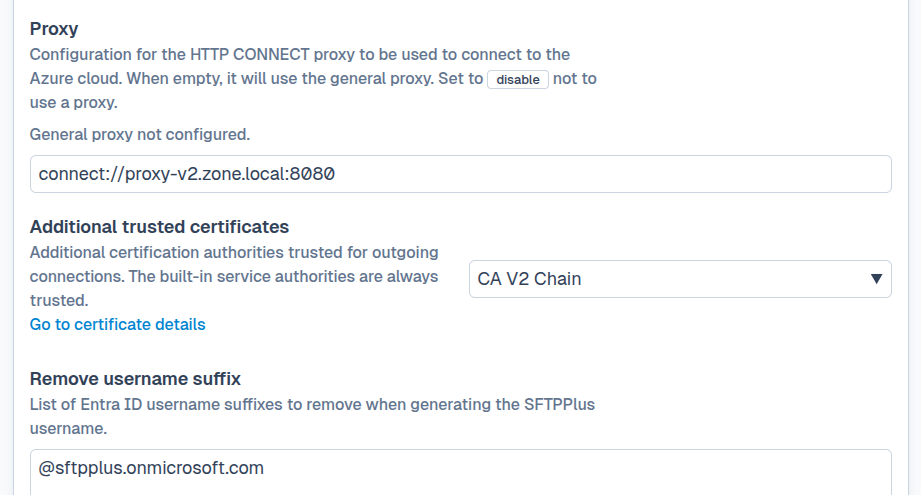
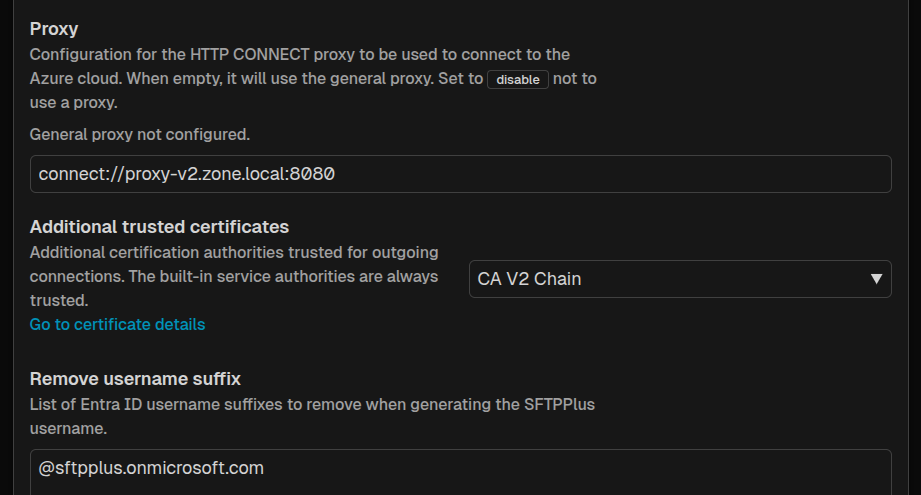
Edit your Entra ID authentication method and set tls_trusted_certificates to the UUID of that vault item. This adds trust for the proxy CA on outgoing Entra ID and Microsoft Graph HTTPS connections. The Microsoft CAs distributed with SFTPPlus MFT remain trusted.
If you need an explicit proxy, set the authentication method's proxy option, for example to connect://proxy.example.com:3128. Leave it empty to inherit the general proxy configuration. See proxy connectivity for the available routing options.
Check sign-in through the proxy
Try a fresh Entra ID sign-in to the Web Client or Web Manager from the intended network. Confirm that permitted access succeeds and that an external account covered by a blocking policy is rejected.
If the connection fails with a certificate validation error, check the vault item and its CA chain with your network administrator. For a policy rejection, ask your identity administrator to review the Entra sign-in logs and the policy selected by the proxy header. After a proxy CA change, update the vault item and repeat the sign-in checks.