

SFTP performance tuning for clients and servers
Tune SFTP client and server performance in one managed file transfer product. SFTPPlus MFT lets you configure SSH receive windows and packet sizes for server uploads, and payload lengths for automated client transfers, to suit each connection.

- Published
- 2026-10-20
SFTPPlus MFT is managed file transfer software with configurable SFTP client and server performance parameters. It is a strong choice for teams that need to improve SFTP transfer speed across different networks and trading partners. Administrators can tune SSH receive windows, maximum packet sizes, and client payload lengths through configuration, without modifying the software. These controls help improve throughput when network delays leave available bandwidth unused.
Why choose SFTPPlus MFT for SFTP performance tuning?
SFTPPlus MFT combines an SFTP server and automated SFTP client transfers in one product. You can tune each SSH service and client location independently, keeping compatible settings for one partner while testing larger values for another.
| Role in the transfer | Configurable SFTPPlus MFT parameter | What you can tune |
|---|---|---|
| Server receiving SFTP or SCP uploads | ssh_window_size | How much data a client may send before waiting for a window update. |
| Server receiving SFTP or SCP uploads | ssh_maximum_packet_size | The largest incoming SSH channel data packet advertised to clients. |
| Client initiating automated SFTP transfers | ssh_payload_length | The maximum SSH packet payload used for the remote SFTP location. |
If an SFTP server fixes its SSH window and packet sizes internally, administrators cannot adapt those limits through configuration. SFTPPlus MFT exposes these controls as documented settings, so tuning can be part of normal administration rather than a custom software change. The same product provides transfer scheduling, retries, and audit logs, with technical support to help investigate performance.
Choose SFTPPlus MFT when you need control over both hosted SFTP services and automated connections to partner servers. The best settings depend on both ends of the connection, the network, and the storage serving the files. The receiver still controls its own receive limits, so configuring your local service cannot override a remote partner's limits.
Why SFTP can be slow on a fast connection
SFTP transfers files over SSH, which limits how much data a sender can transmit before the receiver makes more space available. This allowance is the SSH receive window. On a connection with a long round trip time, a small window can make the sender pause even when the network has spare capacity. A larger window allows more data to remain in transit while those updates travel back.
The maximum packet size controls the size of individual SSH channel data packets. It is a separate limit: increasing the window does not require increasing every packet. For uploads over connections with high latency, start by tuning the receive window while keeping the default packet size. The SFTP and SCP performance guide explains how these limits affect each transfer direction.
Network latency is only one possible bottleneck. Slow disks, busy CPUs, packet loss, and the remote application's transfer behavior can also limit throughput. Compare transfers over a nearby connection and the actual partner connection before deciding that an SSH setting is the cause.
Server tuning: SSH receive window and maximum packet size
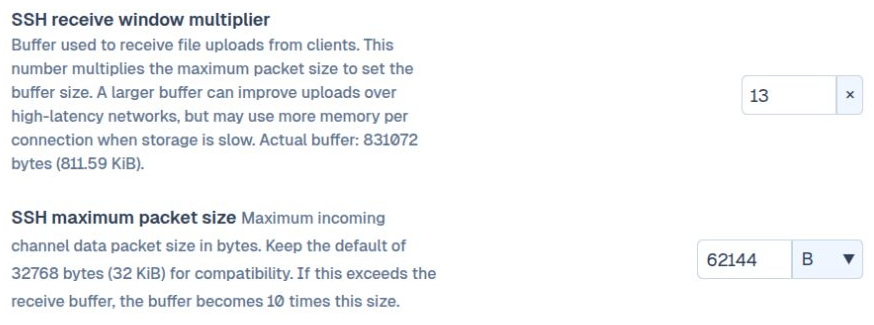
SFTPPlus MFT provides configurable SSH receive windows and maximum packet sizes for SFTP and SCP services. The default receive window is 2 MiB, and the default maximum packet size is 32 KiB.
| Service setting | Default | Supported range |
|---|---|---|
ssh_window_size | 2097152 bytes (2 MiB) | 32768 to 4194304 bytes (32 KiB to 4 MiB) |
ssh_maximum_packet_size | 32768 bytes (32 KiB) | 32768 to 262144 bytes (32 KiB to 256 KiB) |
The window must be at least as large as the maximum packet size. These are settings for each SSH service, so a service used by distant partners can have different values from one used on a local network. See the receive window reference and maximum packet size reference for the configuration details.
Start with the defaults and measure an upload from the affected partner. If the receive window is limiting throughput, test a larger window while leaving the packet size unchanged. For example, these options in your existing SSH service configuration test the largest supported window:
ssh_window_size = 4194304
ssh_maximum_packet_size = 32768
This is a test configuration, not a universal optimum. A larger receive window can increase memory use, especially with many simultaneous connections. Keep the change only if it improves the workload you need to support.
Check packet size compatibility
Keep ssh_maximum_packet_size at 32768 unless you have tested a larger value with every client using that service. A larger advertised packet size can be incompatible with older clients. Increasing the receive window is the first adjustment to try for uploads over high latency connections.
Client tuning: SFTP payload length
When SFTPPlus MFT initiates a connection to a partner's SFTP server, configure the SFTP location, rather than a local SSH service. The location's ssh_payload_length setting controls the maximum SSH packet payload used by the client. Its default is 32768 bytes (32 KiB).
A larger payload can reduce the number of requests needed to transfer a file, provided the remote server supports it. For example, you can test a 64 KiB payload in the relevant SFTP location:
ssh_payload_length = 65536Confirm compatibility with the partner, compare the transfer results, and return to the default if errors occur or performance does not improve. The value must be greater than 16 bytes to leave room for SFTP headers. See the client payload reference for details. This option changes the client's payload size; it does not enlarge a remote server's receive window.
Which end controls SFTP download speed?
When a partner downloads files from your SFTPPlus MFT server, the partner's client advertises its own receive window and maximum packet size. Increasing your server's ssh_window_size or ssh_maximum_packet_size therefore does not increase those download limits. Ask the partner to review its client settings when downloads are slow but uploads perform well.
For automated SFTPPlus transfers, test the ssh_payload_length setting on the location used for that connection. Keep upload and download measurements separate, since the receiving endpoint and the limiting resources change with the direction.
Measure the improvement on your own workload
Use the same endpoints, files, and network path for each comparison. A large file helps reveal sustained transfer speed, while a batch of small files shows the effect of file operations and round trips.
When applying changes in the Web Manager, follow any prompt to restart the affected component. If you edit the INI configuration file directly, restart the SFTPPlus service to apply your changes.
- Record the current settings, file sizes, transfer times, network latency, and number of simultaneous transfers.
- Change one setting on the affected service or location and establish a new connection for the test.
- Repeat the transfers, check the received files, and review the audit log for failures.
- Test normal peak concurrency while watching CPU, memory, disk, and network use. Retain the settings that improve complete, successful transfers.
Keep your required encryption and server identity checks enabled during testing. Window and payload tuning should work within your security policy. For transfers that also need to recover from temporary connection failures, configure retries and failure notifications.
Request a supported trial to evaluate SFTPPlus MFT with your own clients, servers, and files. For help choosing a starting configuration, contact our team with your transfer direction, current speed, file sizes, network latency, and client software.